

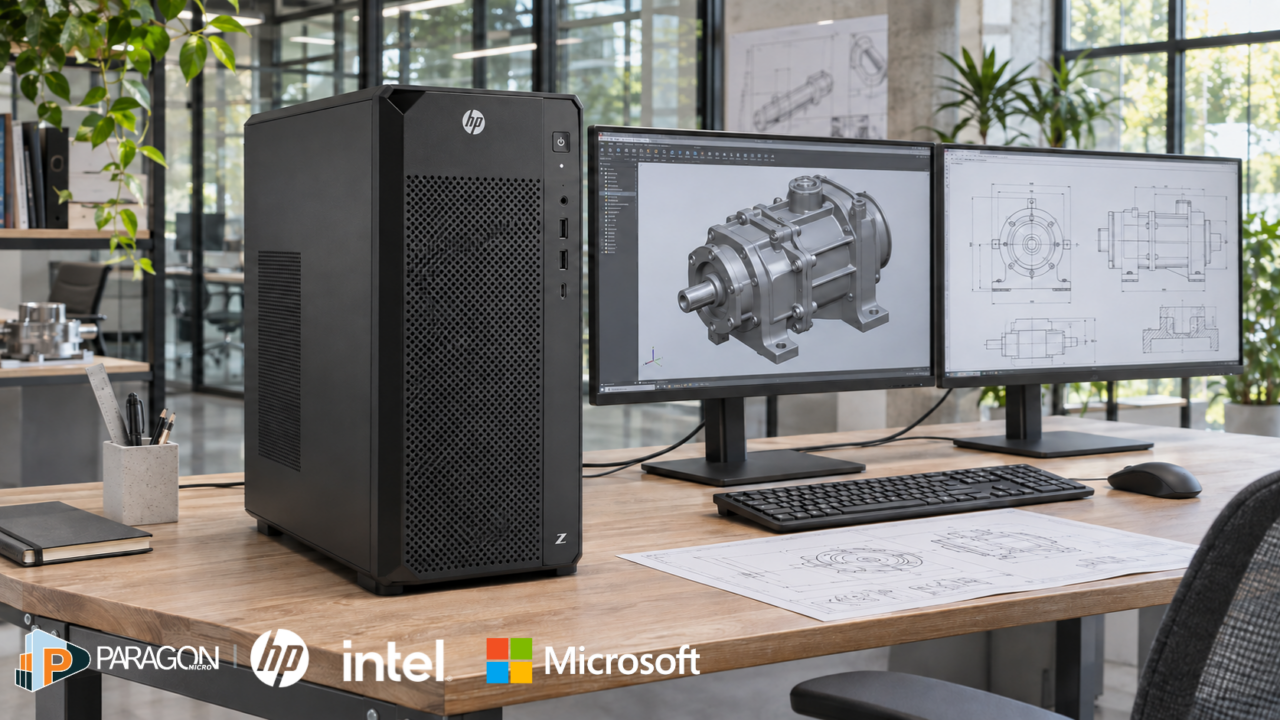
When an engineer waits for a CAD model to respond or a creative team pauses while a video exports, workstation performance becomes part of the project schedule. An occasional delay may be manageable. Repeated throughout the day and across a team, those interruptions can limit how much work gets done and how much time remains to review and refine it.
As projects grow more complex, the computers supporting them may need to change. A system that handled earlier assignments comfortably can struggle with larger files, more detailed designs, or several demanding applications running together.
Choosing an HP workstation starts with understanding those constraints. CAD, 3D modeling, rendering, simulation, and data analysis can place different demands on a system. Intel processors provide computing performance for those applications, while Microsoft Windows supports the software environment employees work in. Selecting the right configuration means evaluating those components together against your team’s requirements.
This guide explains how to evaluate workstation requirements, compare mobile and desktop options, test performance, and prepare the approved configuration for deployment.
Key takeaways
- Start with the applications, project sizes, and recurring delays that affect employees’ work.
- Match Intel processor capabilities, graphics, memory, and storage to the intended workload.
- Compare mobile and desktop workstations based on where employees work and the equipment they use.
- Confirm Microsoft Windows compatibility, application support, and driver requirements.
- Test representative projects and document the approved setup before deployment.
Identify When Your Team Needs a Workstation
The need for a workstation often becomes clear through recurring problems in everyday work. A designer may find that navigating a detailed model becomes less responsive as the project develops, while an analyst may spend increasing amounts of time waiting for calculations to finish. Employees may begin closing other applications or simplifying files just to keep moving.
Those workarounds are useful signals, particularly when they affect tasks central to someone’s role. Understanding how often they occur and what they interrupt gives IT a stronger basis for evaluating the business impact. A delay during an overnight task has different implications from one that repeatedly stops an employee during an active design session.
The next step is identifying the cause. Slow access to a shared file could involve the network or storage environment, while an application problem may require a software update or configuration change. Replacing the computer without investigating those factors could leave the original problem unresolved.
Once the limitation is understood, the conversation can move from needing a “faster computer” to defining the performance the work actually requires. That creates a more useful starting point for comparing workstation configurations.
Match Intel Processor Performance to the Application
Different tasks place different demands on a workstation, even when they happen within the same application. Editing a CAD model, generating a final image, and running a simulation may use system resources differently. The application, project, and task therefore matter as much as the processor specification.
When evaluating Intel processors for an HP workstation, consider how the software distributes its work. Interactive tasks may depend heavily on the performance of individual processor cores. Other tasks, including some rendering and simulation processes, can use multiple cores working in parallel. How much they benefit depends on the application and its settings.
That distinction matters when a role includes several types of work. An engineer may spend most of the day making changes to a model and a smaller portion running calculations. A configuration that completes one calculation faster may provide less overall value if it does little to improve the editing experience that occupies most of the employee’s time.
HP’s workstation portfolio includes Intel Core, Intel Core Ultra, and Intel Xeon processor options in selected systems. Evaluate those options against software-vendor recommendations, representative projects, and the balance of tasks employees perform. A processor family or core count alone does not establish which configuration will best support the role.
Before comparing systems, document the applications and versions in use, typical project sizes, recurring delays, and the programs employees need to run simultaneously. Those details help connect the processor decision to measurable requirements.
Balance Graphics, Memory, and Storage
The processor is one part of workstation performance. Graphics, memory, and storage need to support the same workload, and a limitation in one area can reduce the benefit of an upgrade elsewhere.
For teams working with complex visual content, graphics requirements deserve close attention. Navigating a detailed 3D model and producing a final render may use graphics resources differently, depending on the software. Check the application’s recommendations and whether particular tasks rely on the CPU, GPU, or a combination of both.
Memory requirements should reflect the projects employees actually open and the applications they keep running. A system that handles one application comfortably may behave differently when the employee also has reference files, collaboration tools, and other business applications open.
Storage decisions should account for active project files, local working space, and access to shared resources. If a workflow depends on files stored elsewhere, evaluate that connection during testing so the results reflect the employee’s working environment.
Together, these considerations help define a balanced configuration. The goal is to address the constraints that interrupt work while providing reasonable capacity for the projects ahead.
Compare Mobile and Desktop Workstations
For some professionals, demanding work happens wherever the project takes them. An architect may need to review a model at a customer’s office, while an engineer may need access to design applications at a project site. A mobile workstation can keep the required applications and computing capability with the employee.
Other roles involve sustained work at a desk, where a desktop workstation may offer a better fit for expansion, connected equipment, and the selected performance requirements. HP offers mobile and desktop workstations, allowing organizations to evaluate those needs alongside portability and available workspace.
Consider the complete working setup when comparing the two. Displays, docks, specialist peripherals, and access to project files all influence how useful the workstation will be in practice. For mobile employees, include both travel and desk use in the evaluation.
The right format should support the employee’s working day. Once that is established, IT can confirm that the operating system and software environment support the proposed configuration.
Find a workstation built around your team’s work. Explore HP workstation options through Paragon Micro’s online store.
Align Microsoft Windows with Application and IT Requirements
A workstation configuration needs to fit the organization’s software environment as well as its performance requirements. Confirm that the intended Microsoft Windows edition supports the applications, drivers, peripherals, and management tools the team depends on.
This review should include the application versions employees will use after deployment. A hardware refresh may coincide with a software or operating system update, making it important to test the combination employees will receive.
Microsoft offers Windows 11 Pro for Workstations for demanding professional environments. Evaluate its additional capabilities against the selected hardware and workload, and confirm the Windows edition available with the proposed HP system.
Bring IT’s security and management requirements into the evaluation as well. Required controls, device policies, and background applications should be represented during testing so performance is assessed under conditions that resemble daily use.
Establishing those requirements before purchasing helps connect the hardware decision with the environment in which the workstation will operate.
Plan Workstation Configuration and Deployment
A workstation’s hardware is only part of the setup that was tested. The Microsoft Windows edition, application versions, drivers, user settings, security controls, and connected equipment also contribute to the working experience. Preserving those requirements during preparation helps carry the approved configuration into deployment.
Paragon Micro’s System Readiness Center supports that preparation through configuration, application loading, asset tagging, staging, testing, and documentation before delivery. Its capabilities also include preparing Microsoft workspaces and user-specific settings around business requirements.
For workstation projects, that creates an opportunity to coordinate preparation around the configuration the organization has selected. Agreeing on what needs to be installed, configured, and checked before shipment can reduce the amount of setup left for internal IT when equipment arrives.
Document the application and driver versions, required settings, security requirements, and checks needed before delivery. Where different roles require different setups, capture those differences so each employee receives the appropriate configuration.
That documentation also provides a reference for additional systems, replacement devices, and future project teams. As requirements evolve, the organization can revisit an established setup rather than reconstructing the decision each time.
Prepare your workstations before they reach your team. Discover how Paragon Micro can support configuration, staging, and testing ahead of deployment.
Explore Workstation Configuration and Deployment Services
Frequently Asked Questions About HP Workstations
How do I choose an HP workstation for CAD and 3D modeling?
Start with the software vendor’s recommended specifications and the size and complexity of your projects. Evaluate Intel processor options, graphics, memory, and storage together, then test representative files. Include everyday tasks such as navigating and editing models, along with calculations or final outputs.
Which Intel processor should I choose for a workstation?
The appropriate processor depends on how your applications use processor resources. Some tasks rely heavily on individual core performance, while others can distribute work across multiple cores. Compare configurations using the applications, settings, and projects your team uses most often.
Do I need Windows 11 Pro for Workstations?
The appropriate Microsoft Windows edition depends on your hardware, applications, and IT requirements. Review the additional capabilities of Windows 11 Pro for Workstations against the intended workload, then confirm application and driver support. The workstation label alone should not determine the Windows edition you select.
How can Paragon Micro help prepare workstations for deployment?
Paragon Micro’s System Readiness Center supports configuration, application loading, asset tagging, staging, testing, and documentation before delivery. Organizations can coordinate those services around their approved workstation requirements to reduce the setup work remaining when devices arrive.
Choose an HP Workstation Around Your Team’s Work
A workstation investment is easier to evaluate when it is tied to a clear project need. Understanding the constraint guides the configuration, testing demonstrates whether it helps, and consistent preparation carries that improvement into employees’ working environments.
HP workstations, Intel processors, and Microsoft Windows bring hardware and software choices into the same decision. The right combination should reflect the applications your teams depend on, the places they work, and the projects they need to deliver.
Give your next workstation investment a clear purpose. Work with Paragon Micro to review your workload requirements, explore suitable configurations, and plan device preparation.